
Features / Dock and Apps
Dock and Apps
Fold X is a launcher, so your apps are one tap away. A dock holds the apps you use most, and the Apps page sorts everything else into categories by itself. When you move an app, your choice always wins.
- Where you find it
- Dock and Apps page on the open screen. App row and swipe-up drawer on the closed screen.
- How it works
- On your phone. App categories come from a list built into the app.
- What you need
- Nothing extra. A launcher can see your installed apps. No plan needed.
- Your data
- Your app choices, categories and moves stay on the phone, and are saved to your Fold X account when you are signed in.
The dock
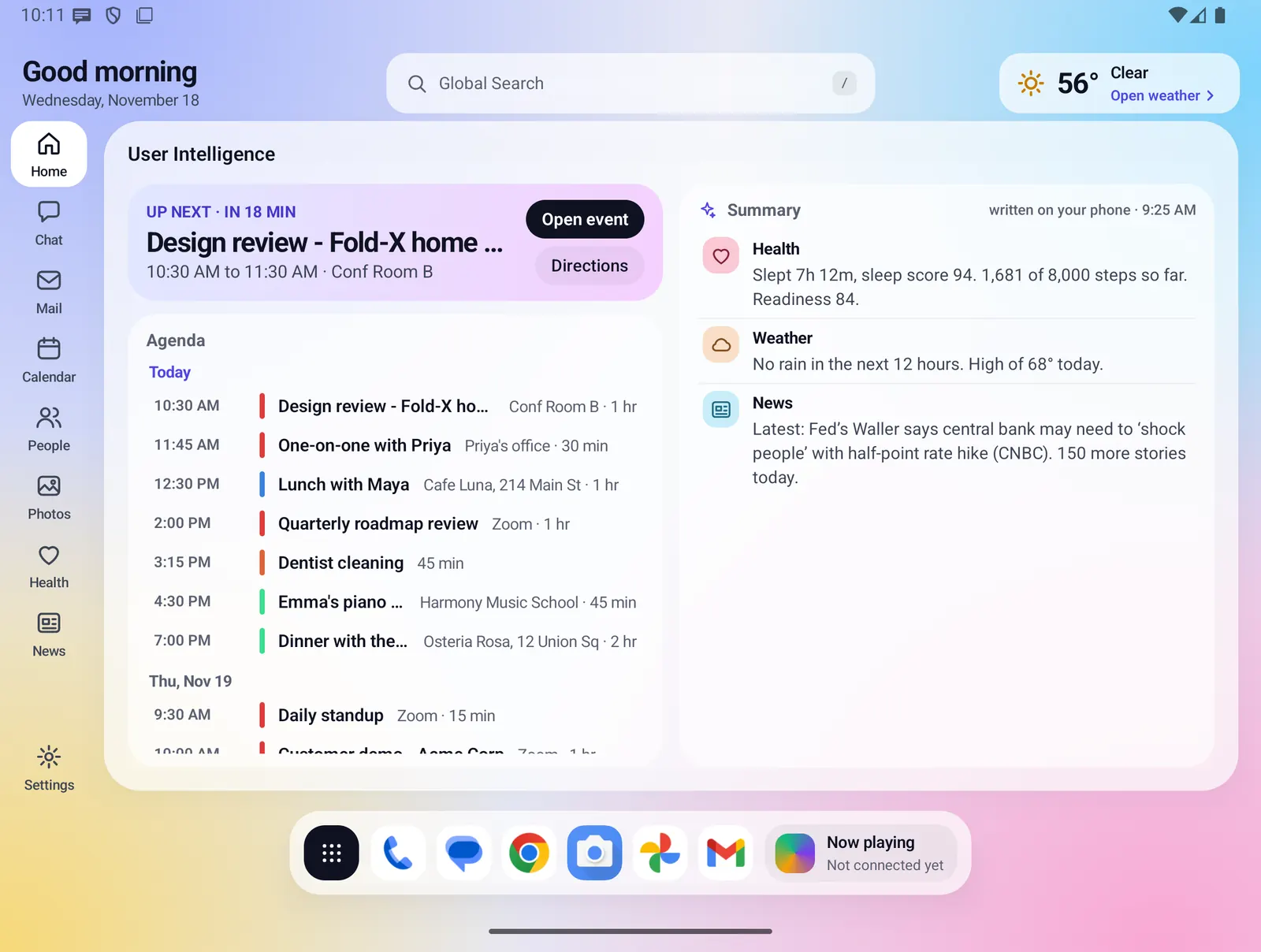
The dock floats at the bottom of the open screen on every page.
- The black apps button on the left opens the Apps page.
- Up to six apps follow, with their real icons. Until you pick your own, Fold X shows starter apps picked from your phone, such as the dialer, messages, browser and camera.
- On the right is a small widget you choose in Settings > Dock > Dock widget: None, Now playing, Up next, Focus timer, Battery or Steps.
- On Home, swipe up from the dock area to open the Apps page. Swipes that start higher up still scroll the page.

Apps on the closed screen
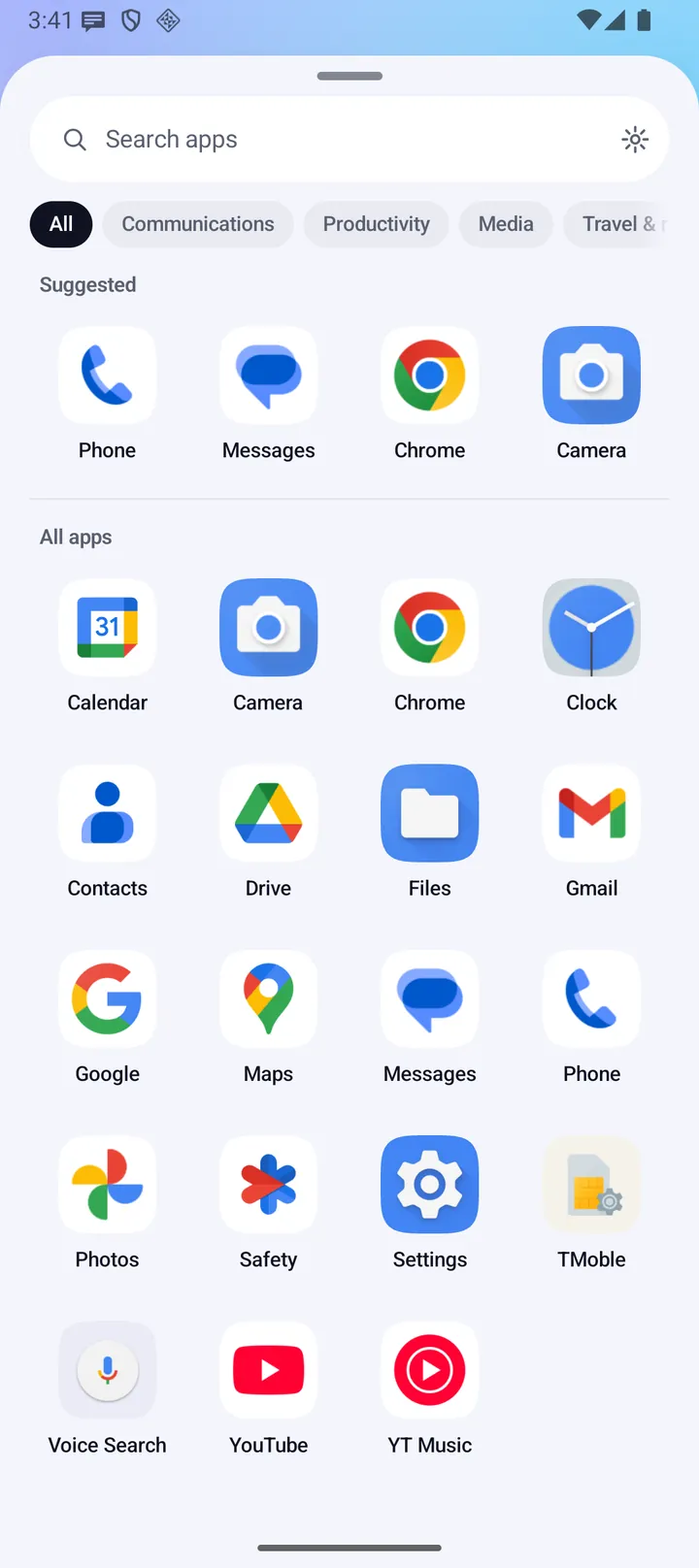
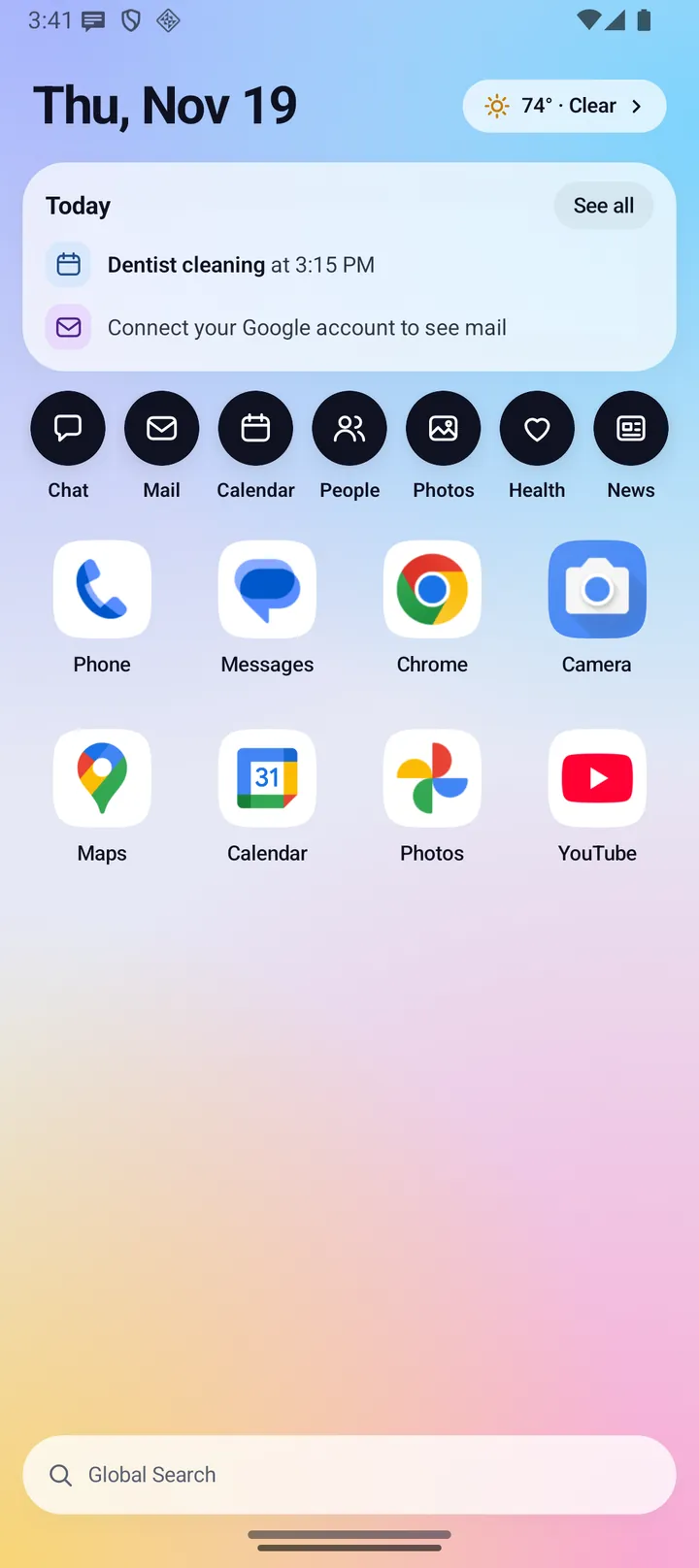
Closed, Home shows eight of your apps in a grid under the feature buttons. Swipe up, or tap the handle, to open the app drawer.
- A Search apps field filters as you type. The gear next to it opens Fold X Settings.
- Suggested shows the first four of your home apps, then All apps lists everything.
- Category chips under the search box show All, the automatic groups that have apps, and your own categories.
- The Organize chip adds the same tools as the open screen: a New category field with Add, Delete, Auto-sort and Undo my moves.
- Drag the handle down or tap it to close the drawer.
Same or different apps on each screen
Settings > Dock > Home apps decides which apps sit on the open screen's dock and on the closed screen.
- Same apps on both screens (the default): one list of up to 8. The open dock shows the first 6, and the closed drawer's Suggested row shows the first 4.
- Different apps for closed and open: two lists, "Open screen dock" (up to 6) and "Closed screen apps" (up to 8). Both start with the apps you had, so nothing disappears.
- Each list shows its apps as pills. Tap a pill to take it off. Choose apps opens every installed app to add or remove.
- A line under each list says what shows, such as "Showing your apps: 3 of 6 chosen" or "Showing the starter apps, picked from your phone".
- A full list says "That list is full. Take one off first."
The Apps page
On the open screen, the Apps page opens from the dock's apps button or a swipe up on Home. Categories are on the left, with an app count for each. On the right are a Filter apps field, a short note and a grid of every app in the chosen category.
There is no screenshot of the open-screen Apps page yet.
Automatic categories
- Fold X sorts your apps into Communications, Productivity, Media, Games, Shopping, Finance, Travel & maps, Health and Tools, in that order. Apps it does not recognize go to Other. Empty groups are hidden.
- It uses a list of about 10,000 popular apps built into Fold X, then Android's own hint for the app, then Other. Nothing is looked up online.
- Auto-sort: On/Off is on by default. Off shows only your own categories, plus Uncategorized once you have one. Your moves are kept either way.
Organize: your moves win
- Tap Organize (it reads Done while you organize). Pick a category, then tap an app to move it there.
- While organizing, every app shows: an orange dot marks apps you moved, a tick marks apps in the chosen category, and the rest are faded.
- Tap an app you moved to send it back to its automatic group. Fold X confirms with a message such as "Back in Media".
- Tapping an app Fold X placed in that category itself changes nothing. A message explains how to move it.
- Undo my moves (n) clears every move you made. Your own categories stay.
Your own categories
- Type a name in the New category field and tap Add. The name cannot reuse an automatic group, All, Uncategorized or Other.
- Then pick your category in Organize and tap apps to move them into it.
- Delete category removes one of your own. Apps you moved into it go back to their automatic group.
Dock widget
- Battery: your phone's battery percentage.
- Now playing, Up next, Focus timer and Steps: placeholders for now. They show fixed text such as "Not connected yet" or "Open Calendar for your day", not live data.
- None hides the widget.
Icon designer
- Settings > Icon designer changes how every app icon looks inside Fold X, with a live preview.
- Start from a style (Original, Tonal, Vivid, Glass, Outline, Mono or Dark), then adjust the shape, background, color, symbol, icon and labels. Changes apply as you make them.
Switching between same and different
- Switching to Different gives each screen its own copy of your list: "Each screen now has its own apps. Both start with the ones you had."
- Switching back to Same uses the open screen's list for both: "Both screens now use the open screen's apps."
Limits and what is not built yet
- You cannot rename, hide or reorder an automatic group.
- The built-in app list is based on Play Store data from 2021, with some hand corrections. Newer or renamed apps, and many apps that come preinstalled by Samsung or Google, may land in Other until you move them.
- The list only changes with a Fold X update.
- Only the Battery dock widget shows live data. The others are placeholders.
- Free-form Home boards and widgets are not built.
Privacy
Fold X needs to see your installed apps to show the dock and the Apps page, as every launcher does. Sorting happens on the phone from a list built into the app, and nothing about your apps is looked up online. When you are signed in, your home apps, dock widget choice, own categories, moves and the Auto-sort switch are saved to your Fold X account, so a new phone gets the same setup. An app that is not installed on the new phone is simply not shown. See Data & permissions.