Features / People
People
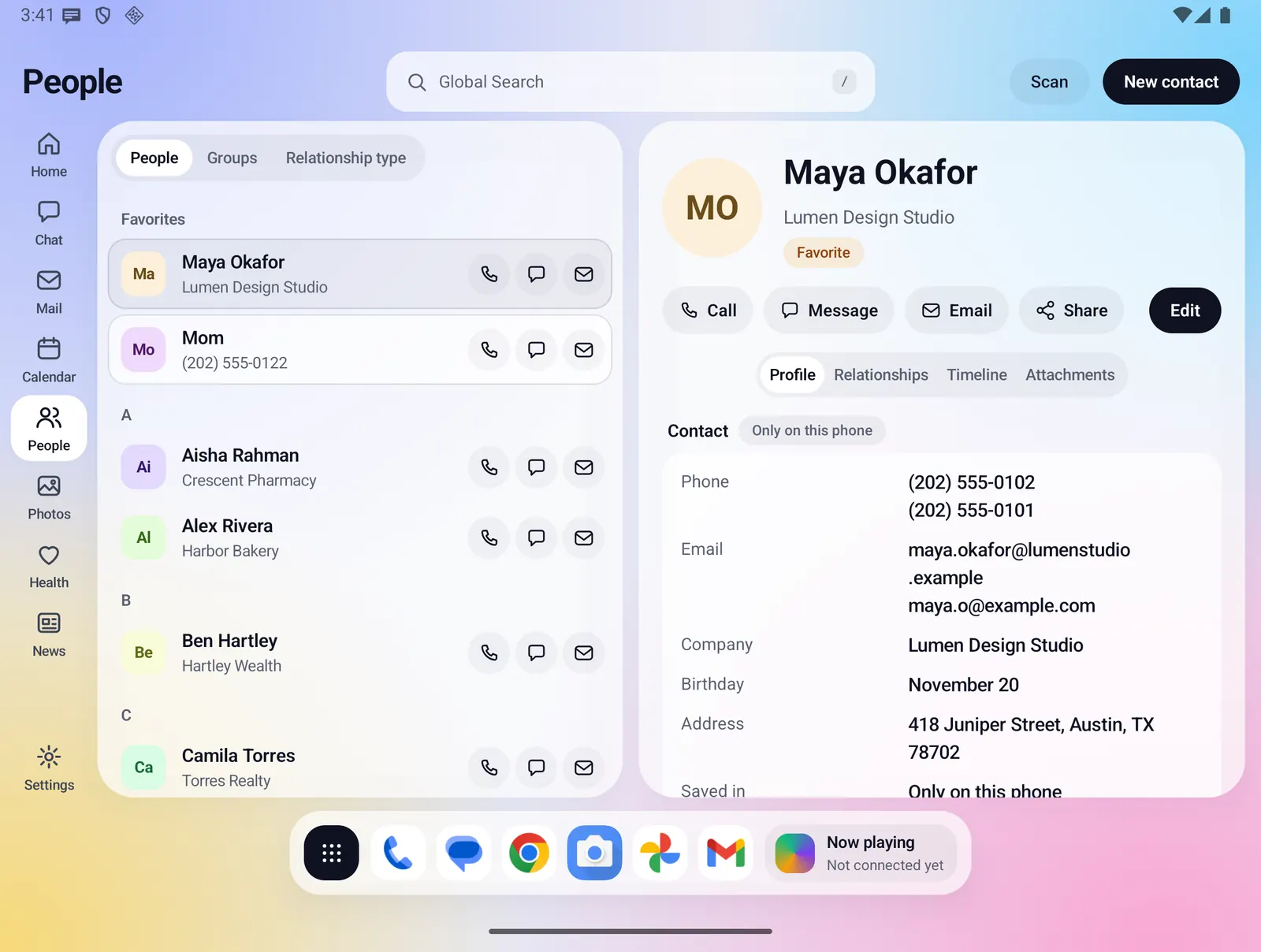
Your phone's contacts, with room for the whole story. Emergency contacts and favorites sit at the top, everyone else follows A to Z, and each contact opens with four tabs: Profile, Relationships, Timeline and Attachments. Everything is kept in Android's own contacts, so it syncs through your Google or Microsoft account as it already does.
- Where you find it
- Open screen: the list and the contact side by side. Closed screen: one screen at a time.
- How it works
- On your phone, on Android's own contacts. Only Google Drive and OneDrive files go through the Fold X server.
- What you need
- Contacts permission. Optional: notifications for reminders, a fingerprint or screen lock for private contacts, the on-device AI model for Scan, and a Fold X trial or plan for Drive and OneDrive files.
- Your data
- Contacts stay in your phone's contacts and your own accounts. Scan and Import read text on the phone. Files go to your own cloud only when you add them.
Groups
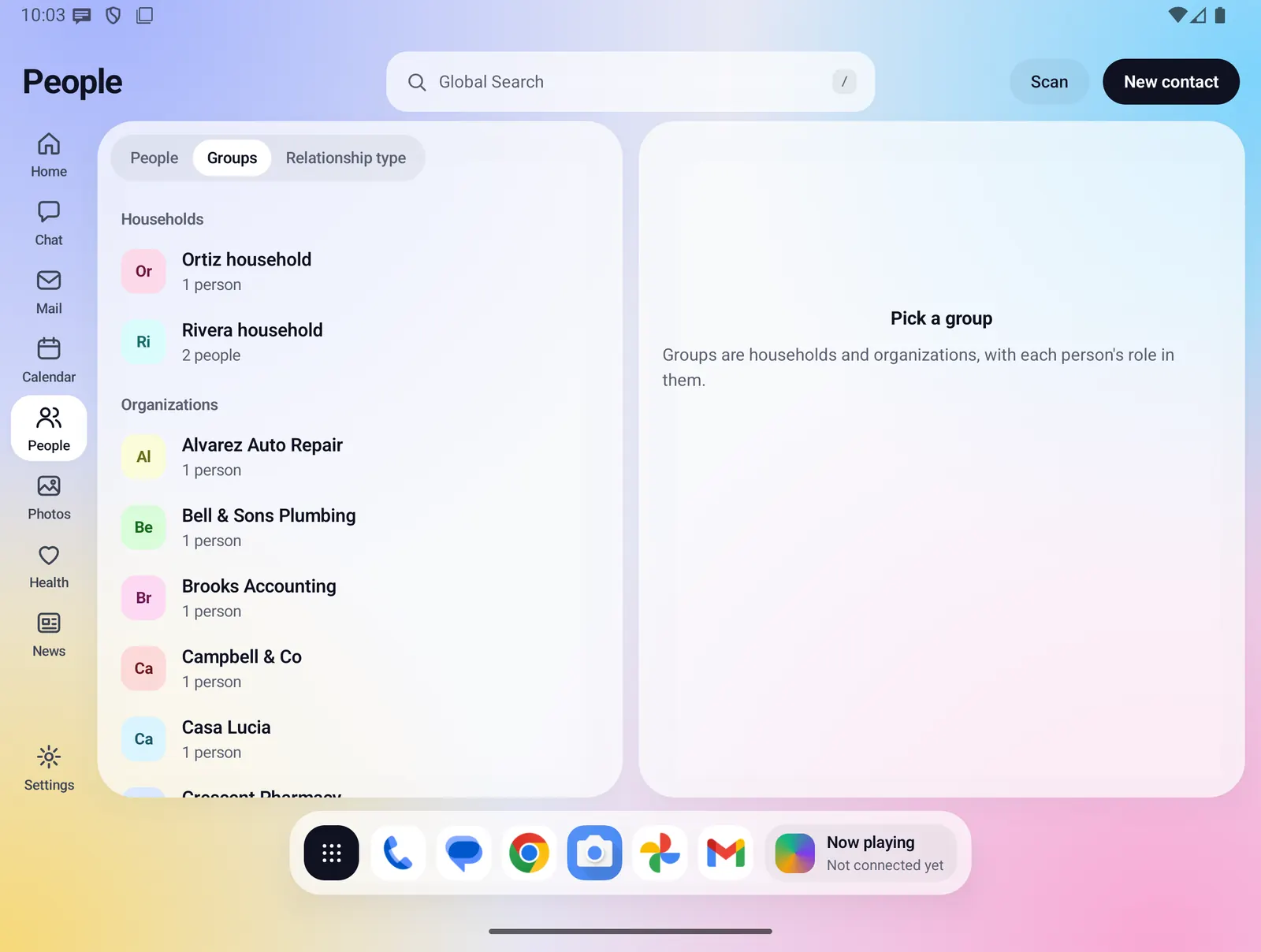
A switch at the top of the list changes it between People, Groups and Relationship type. Groups are households and organizations, with each person's role in them.
- Groups are sorted by kind: Households, Organizations, Teams, Clubs and Other groups, each with how many people are in it.
- Make one with New group: a name, a kind, then Add.
- Open a group to see its members and their roles. Type a name under Add someone to add a person, set a role, or tap the x to take someone out.
Relationship types and labels
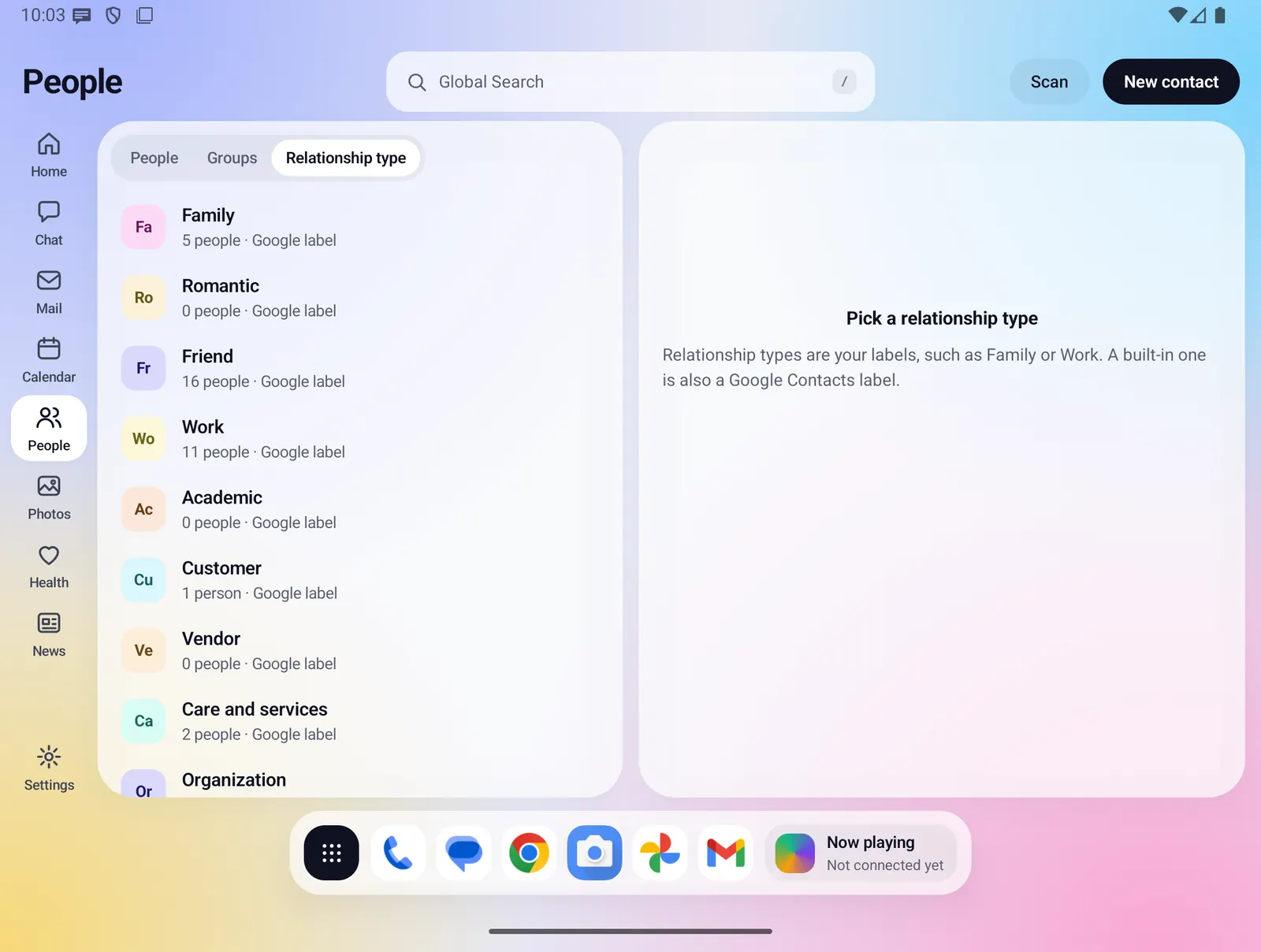
Relationship types are your labels, such as Family or Work. The view lists every built-in label, then your own, with how many people have each one.
- Built-in labels include Family, Romantic, Friend, Work, Academic, Customer, Vendor, Care and services and Organization.
- A built-in label is also a Google Contacts label of the same name for contacts saved in a Google account. Each row says "Google label" or "Fold X only".
- Fold X only changes Google labels it made itself. A label you made in Google Contacts is never joined, left or copied.
- Open a label to see who has it, add someone, or take someone out.
A contact, and how they connect
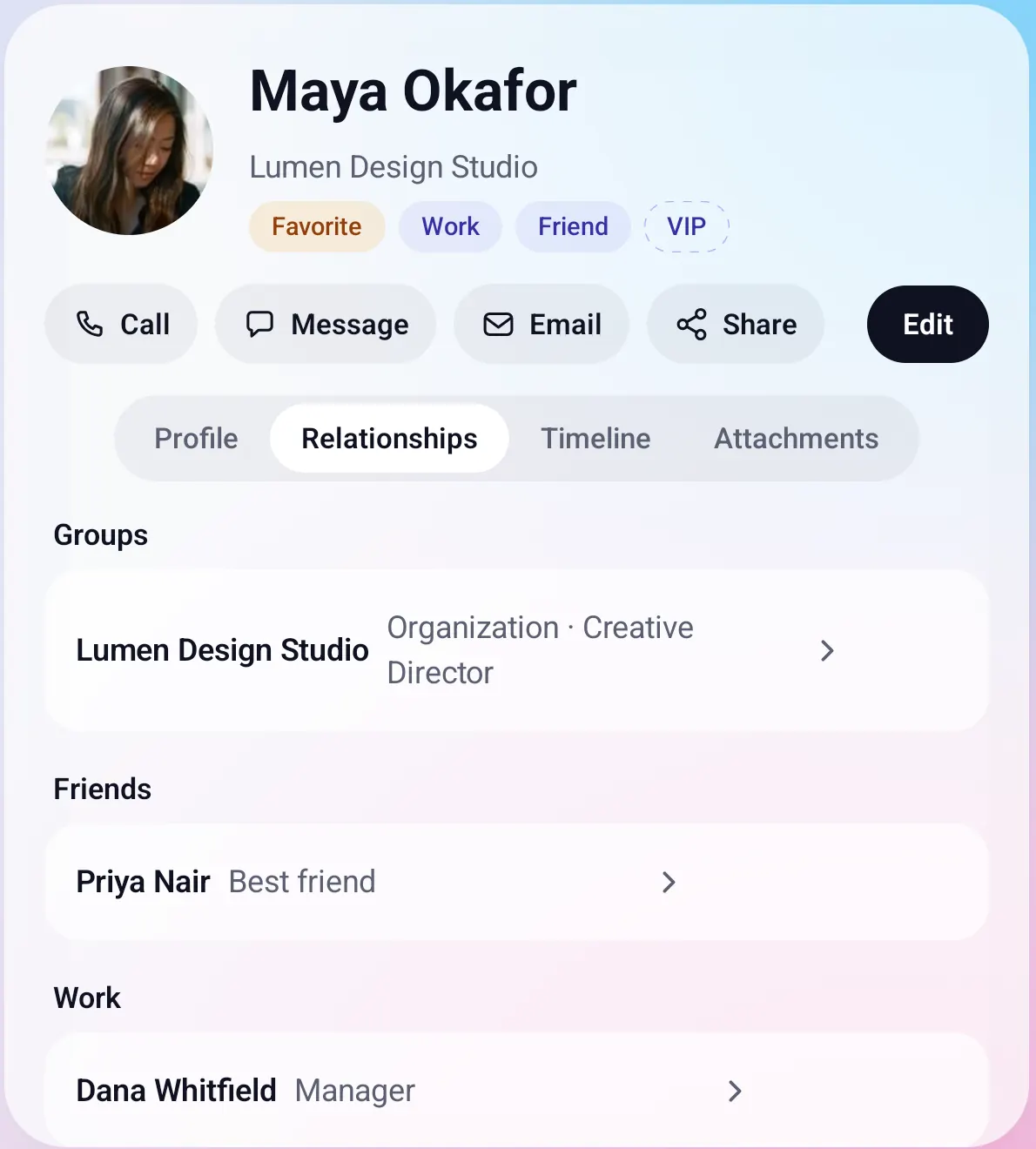
The top of a contact shows the photo, name, company and chips for In case of emergency, Favorite, Private and labels. A label kept only in Fold X has a dashed border. Below are Call, Message, Email, Share and Edit.
- Profile shows where the contact syncs (Google, Microsoft, both, or only on this phone), your notes, and one card for each kind of detail you filled in.
- Relationships shows the person's groups and roles, then their relations, such as Best friend or Manager. Tap a group or a person to open it.
- When you link two contacts, Fold X writes the reverse on the other contact too, and takes it away again if you remove the link.
Timeline and reminders
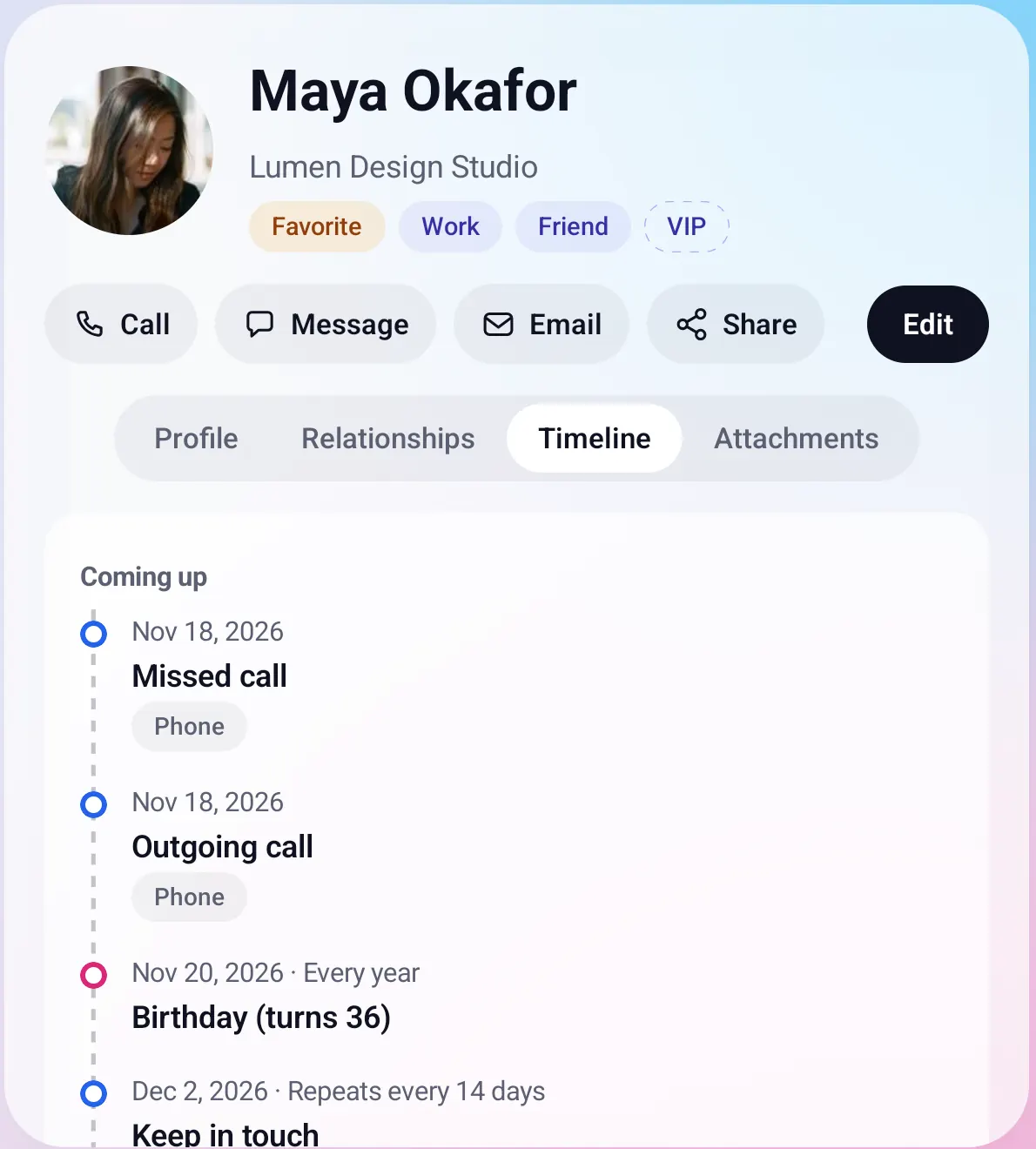
The Timeline tab puts everything dated about a person on one line: what is coming up, a Today mark, then the past under year headings.
- It reads the birthday, important dates, life events, loans, files, notes you logged, and "Keep in touch every" reminders.
- It also lists the emails that Fold X Mail keeps on your phone from or to this person. They are read, never copied into the contact.
- Turn on Remind me for a birthday, a date or "Keep in touch every N days". A daily check, around 9 in the morning, posts a notification on the day.
- Add to my calendar opens your calendar app with the event filled in.
Attachments and files
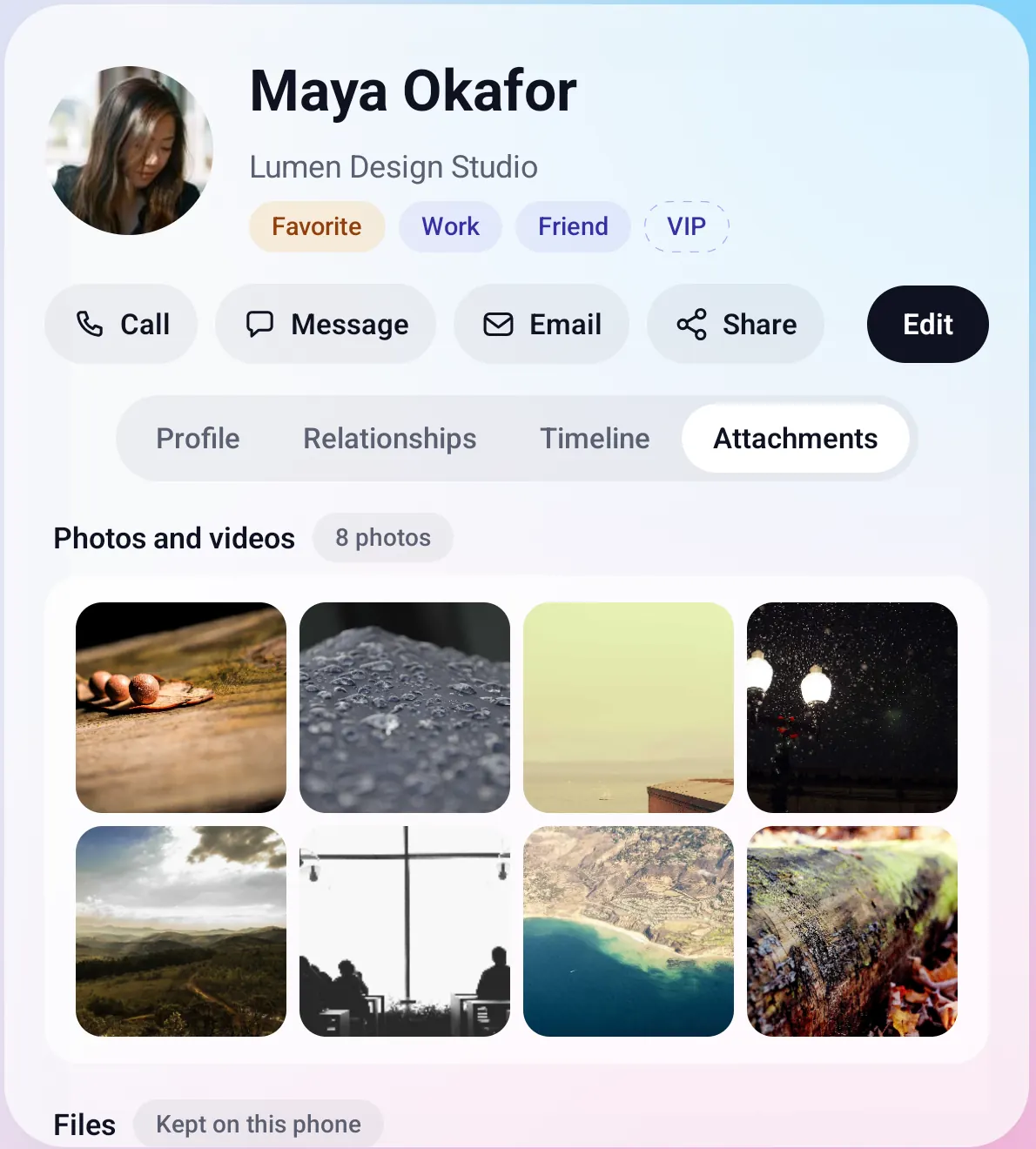
The Attachments tab shows the photos and videos the person is tagged in, with a count, and the files you keep with them.
- Tag photos in Photos and Videos, or in Edit with Android's photo picker.
- Add a file in Edit with Android's file picker. Each file shows where it is kept, with Open, Open online, Save a copy and Remove.
- For a contact saved in a Google or Microsoft account, files can also go to your own Google Drive, OneDrive or both. A contact kept only on this phone keeps its files on the phone.
Everything People does
The list
- From the top: a yellow banner when there are possible duplicates, In case of emergency in red boxes, Favorites, then everyone under the first letter of their name.
- A person in In case of emergency is not repeated under Favorites. The x on an emergency row takes the person out of that section.
- Each row shows the photo or initials, the name, and the company, phone or email. On the open screen each row also has round Call, Message and Email buttons.
- Contacts that share a phone number or email show as one row.
- The header has Scan and New contact. There is no search box inside People: use Global Search, which finds contacts too.
- Favorites use Android's own star, so they match your other contact apps.
Contact actions
- Call opens your phone app, Message your messaging app, and Email your email app. Each shows only when the contact has a number or address.
- Share sends a contact card (vCard) through Android's share sheet: name, phones, emails, company, address, birthday and photo. Also include N fields adds labels and other details. Private fields are never included.
- Fields offer Copy, Map or Call where they fit. A web address opens in your browser.
Edit
- Edit has the same four tabs, with Save, Cancel and Delete. Delete asks first. Nothing is saved until you tap Save.
- The Profile tab holds the Labels strip, the photo (add, change or remove), name, phone, email, company, birthday, address, Favorite, In case of emergency, Saved in and Private, then your own notes.
- Add a field searches 301 ready-made fields in 21 categories. Make your own field adds one you name yourself, as text, a choice, a link, a list and more.
- Health records (Medications, Diagnoses, Allergies, Vaccinations) are cards with their own boxes.
- The Relationships tab takes relations (group, relation, person) and groups (group, kind, role). The Timeline tab takes important dates, calls and visits, life events, tasks, gifts and loans.
- Fields that name another person suggest your contacts as you type.
- Saved in picks the account for a new contact, or only this phone. The first Google account is the default. Android cannot move a saved contact to another account.
- Dates are typed as year-month-day, or month-day when the year is unknown.
Reminders
- Remind me sits on the birthday, each important date, every date field and "Keep in touch every". It changes to Reminder on.
- Yearly dates (birthdays, anniversaries, weddings, name days, adoption days, memorials, and dates with no year) remind you every year. Other dates remind you once.
- Keep in touch reminds you when your last logged contact or call is N days old, then every 7 days while it stays overdue.
- A private contact appears as "A private contact" in the notification.
- On Android 13 and later Fold X asks for notifications when you turn on the first reminder. If you say no, the reminder stays off.
Private contacts and fields
- Mark a contact Private in Edit. It then leaves the list, groups, labels, the duplicates banner, Global Search and Home.
- A single field can be private too. It shows as "Private · tap to show" and is never in a shared contact card.
- To show private items, tap the "N private contacts hidden" line. Android asks for your fingerprint or screen lock. Hide private locks them again, and they lock again when Fold X closes.
- A phone with no screen lock cannot protect them: private items are shown, with a message saying so.
Duplicates and merging
- Two contacts count as possible duplicates when they share an email, the same phone number, or the same name.
- The banner opens Same person?: pick which value to keep wherever they differ, see what is combined automatically, then Merge, Not the same person or Cancel.
- Merge joins the two contacts the way Android does, so each account keeps its copy and your phone shows one contact. Nothing is deleted. Files, photo tags and reminders move to the joined contact.
- Not the same person is remembered, and the pair is not offered again.
Import
- Import sits beside the tabs in Edit and on every web address field. Paste text such as an email signature, type a web address, or pick a contact card (.vcf).
- Fold X first finds names, companies, phones, emails, addresses, dates and web links by pattern matching, on the phone. Tick what you want and tap Add N approved.
- When the on-device AI model is installed, it then suggests people from the text, up to 20, reviewed one at a time with Approve, Edit or Skip. Each value shows the line it came from, and a value is kept only if it is written in the text.
- A web address is read by your phone directly: https only, no addresses on your own network, at most 10 seconds and 1 MB, no cookies and no JavaScript.
- New contacts made this way get the label Imported.
Scan
- Scan in the header opens Google Play services' document scanner to capture, crop and straighten up to 5 pages, or pick them from your gallery.
- The text is read on the phone, then the on-device AI model fills in a contact: name, phone, email, company, title, address, birthday, other fields, relations, dates and notes. A value is kept only if it appears in the scanned text.
- A review card shows each value with the line it came from. Edit or remove any line, pick the contact (a match, New contact or Another contact), then Approve. Nothing is saved before Approve.
- Adding to an existing contact never overwrites anything. A different value goes into the notes instead. A new contact gets the label Scanned.
- Keep the scan with this contact (off by default) saves the page images as files on the contact.
- If the AI cannot read the details, Save the text as a note puts the scanned text into a contact's notes.
Google Drive and OneDrive files
- Connect each cloud in Settings, Sync and backup. A Google contact's files go to Google Drive, a Microsoft contact's to OneDrive. For a contact in both, a Google Drive / OneDrive / Both switch picks where.
- Files upload after you save, up to 32 MB each, into a folder named after the person (on OneDrive, inside Apps, Fold X). The row shows Uploading, then where it is kept, with Try again or Reconnect if something fails.
- A short line in the contact's notes lists the file, so another phone signed in to the same account sees it and can open it online.
- Fold X can only see files it made in your Google Drive, and only its own app folder in OneDrive.
- If the cloud is not set up on the Fold X server yet, Settings says so and files stay on the phone.
Settings, Fields and labels
- Choose which labels are also Google Contacts labels, and create the missing ones in every Google account on the phone.
- Create, rename and remove your own labels and fields. One still in use cannot be removed.
- Hide whole field categories from Add a field.
Limits and what is not built yet
- Private hides contacts and fields on screen and in Share. The text is still in the contact's notes, where Google Contacts and Outlook can show it.
- Labels on Microsoft contacts are kept in the notes only. Outlook categories cannot be written from the phone.
- A saved contact cannot be moved between Google and Microsoft.
- Fold X does not write calendar events itself. Add to my calendar uses your calendar app.
- Import cannot read pages that need a login or JavaScript, such as most LinkedIn profiles, or PDFs. Paste the text instead.
- Scan reads printed text well and handwriting poorly. It takes one person per scan. Health records, link fields and lists are not filled. If you fold or unfold the phone while the review card is open, scan again.
- Scan and AI suggestions in Import need the on-device AI model, downloaded in Settings, On-device AI, and a phone with enough memory. Without it, Import still uses pattern matching.
- Calls show on the timeline only in builds allowed to read the call log. The Google Play build does not ask for it.
- Each contact's Fold X details are limited to about 4,000 characters of notes. A warning shows when you go past it.
- Two contacts with the same name share one cloud folder. After a rename, files uploaded under the old name are not found by Open online or Remove.
- There is no family tree.
Privacy
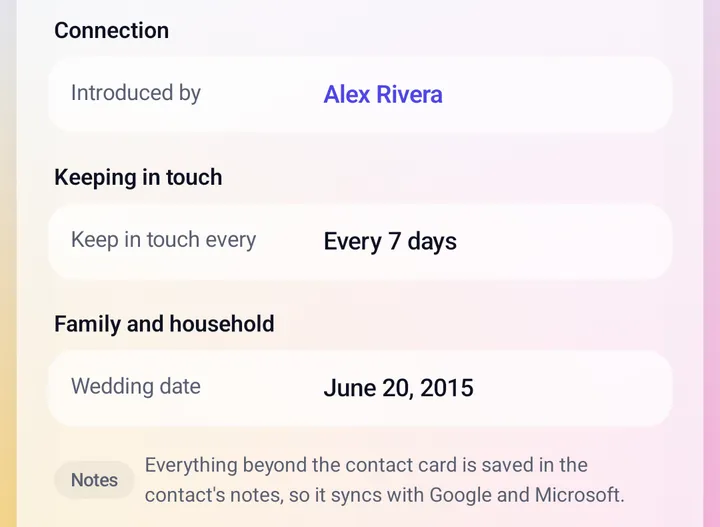
People reads and writes the contacts already on your phone. Anything beyond the standard contact card, such as labels, fields, relations and dates, is saved in the contact's notes, so it syncs with your Google or Microsoft account like any other note. Your reminder choices and a few small lists are kept in Fold X's own storage on the phone. Scan and Import read text on the phone, and the scanned pages are deleted when the card closes unless you keep them. Importing a web address makes your phone fetch that page. Drive and OneDrive files are sent through the Fold X server to your own cloud, and the cloud sign-in stays on the server. Fold X asks to change contacts the first time you save, delete or merge. Data & permissions