
Features / Calendar and Tasks
Calendar and Tasks
Calendar shows the calendars already on your phone in Agenda, Week and Month views, with the selected event and your task list beside them. You can create, edit and delete events, and they are saved to your phone's own calendar. Tasks are kept on your phone and, if you connect Google, sync two ways with Google Tasks.
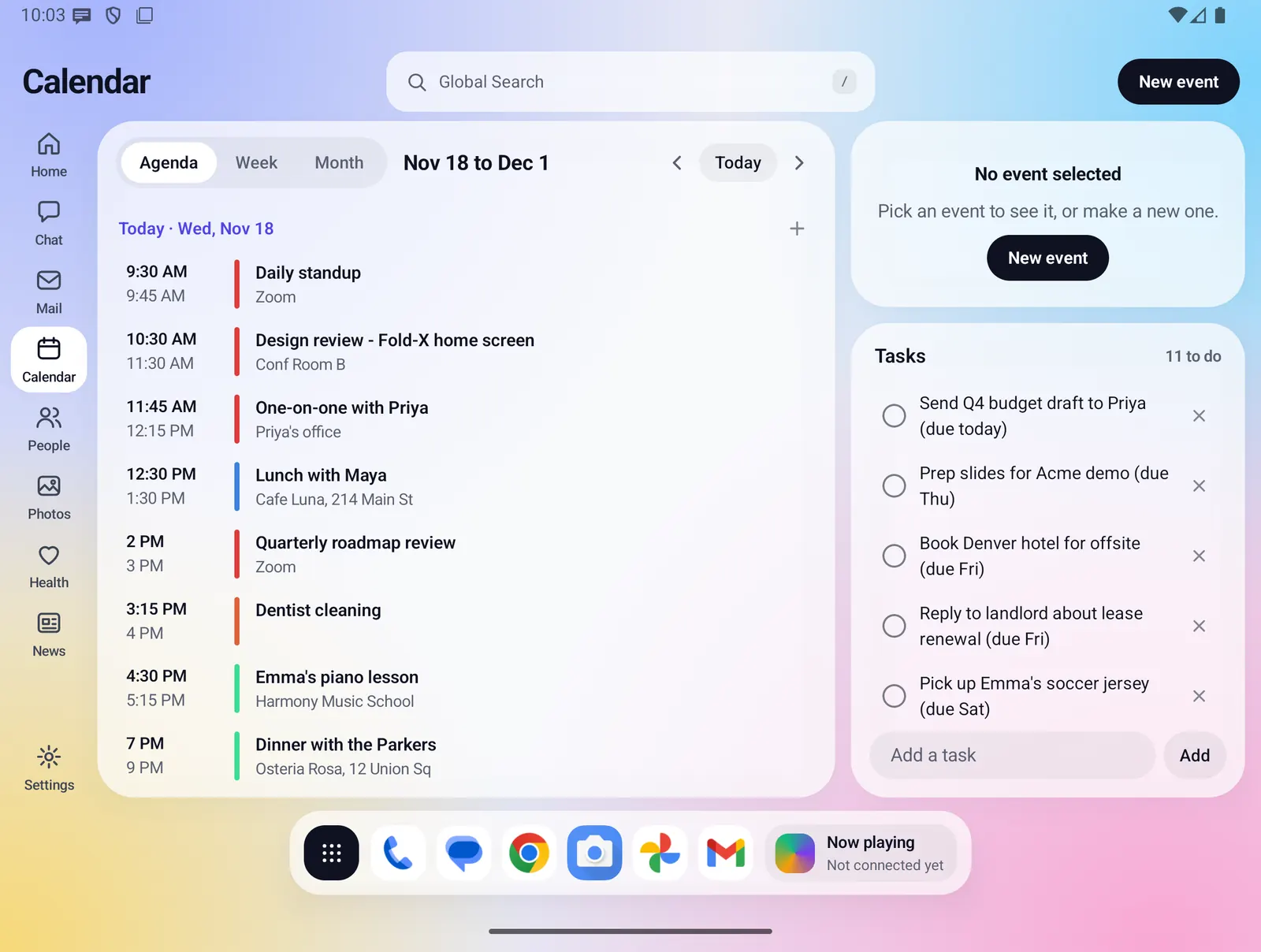
- Where you find it
- Open screen window and closed screen
- How it works
- On your phone. Only Google Tasks sync goes through the Fold X server
- What you need
- Calendar permission for events. Tasks need nothing extra. Google Tasks sync needs a plan or trial and a connected Google account
- Your data
- Events stay in your phone's calendar. Tasks stay on the phone unless Google Tasks sync is on
Agenda, Week and Month
The calendar pane has a switch for three views, the date range as its title, and back, Today and forward buttons. Events keep the color of the calendar they belong to.
- Agenda lists 14 days from the chosen date. Each day has a header ("Today", "Tomorrow" or the date), a + button to add an event that day, and its events with start and end time, title and place. An empty day says "Nothing planned".
- Week shows Sunday to Saturday on a 7 AM to 10 PM grid. Tap an empty hour to start a new event at that time, or tap a day's header to open that day in Agenda.
- Month shows a 6 by 7 grid. Each day shows up to two events and "+N" for the rest. Tap a day to open it in Agenda.
- Tap any event to see it in the side column.
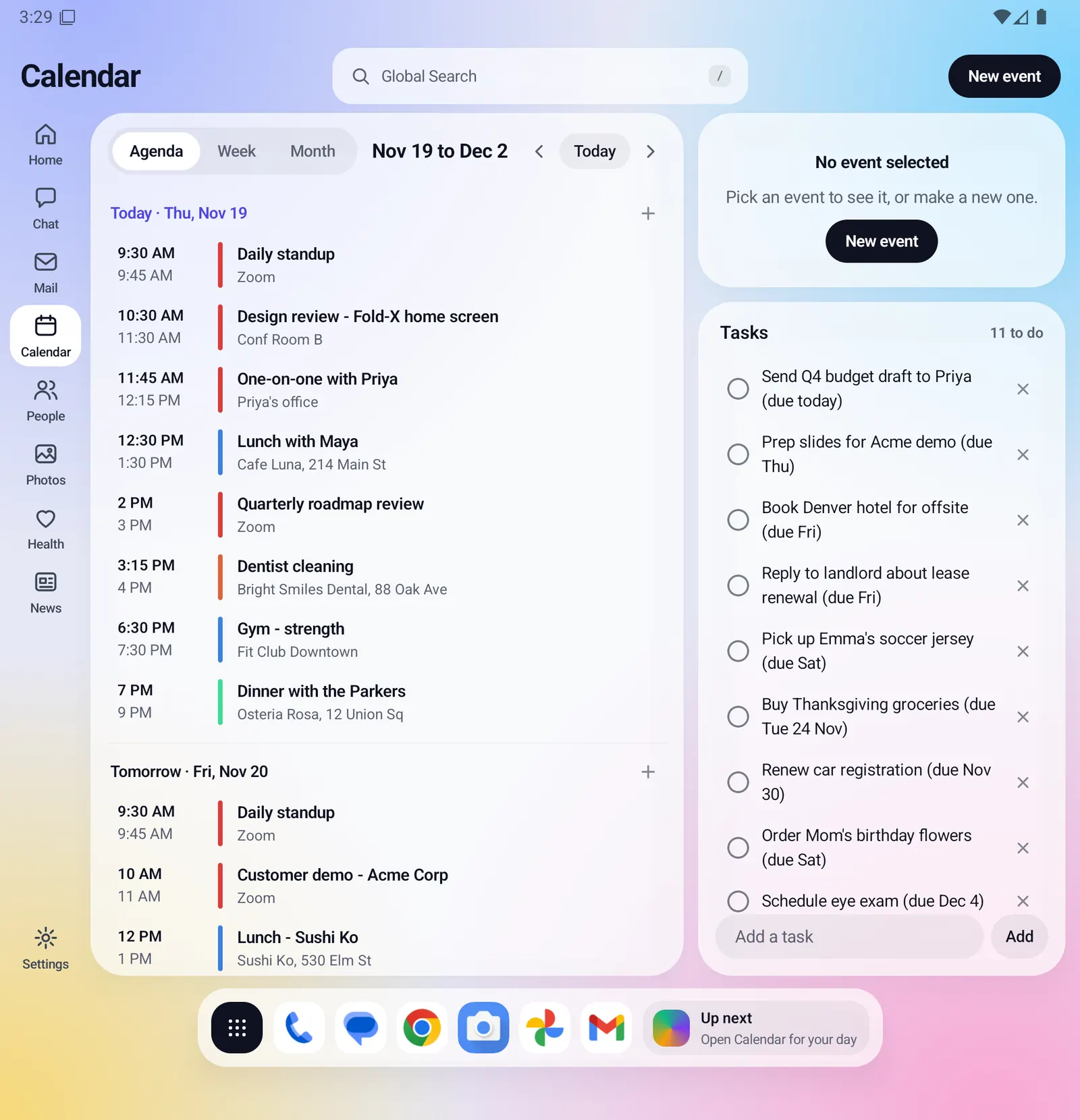
Tasks beside your calendar
The Tasks box sits under the selected event, or under "No event selected" when nothing is picked. It is your own to-do list. Fold X never fills it with sample tasks; when it is empty it says "No tasks yet. Add one below."
- The header shows how many are left, such as "11 to do".
- Tap a task to tick it off or untick it. Ticked tasks are crossed out.
- Tap the x on a task to remove it.
- Type in Add a task and tap Add, or press the keyboard's Done key.
- Tasks work without calendar permission, without an account and offline.
- The Tasks box hides while you create or edit an event, so the form gets the whole column.
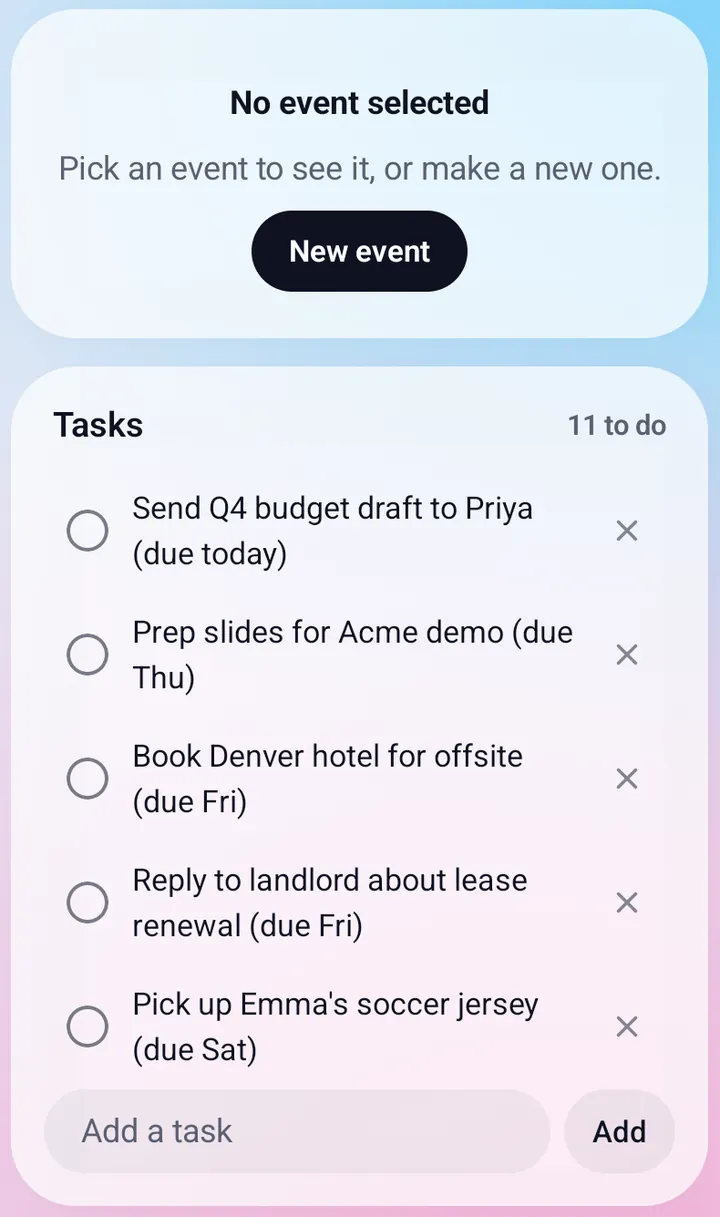
On the closed screen
With the phone closed, Calendar shows one screen at a time. The calendar comes first, with the date range on its own line under the view switch.
- The header has a Tasks button and a New event button.
- Tapping an event, Tasks, New event or Edit opens a full screen for it.
- The back arrow returns to the calendar, and from the calendar it leaves Calendar.
- The same events, views and tasks as the open screen.
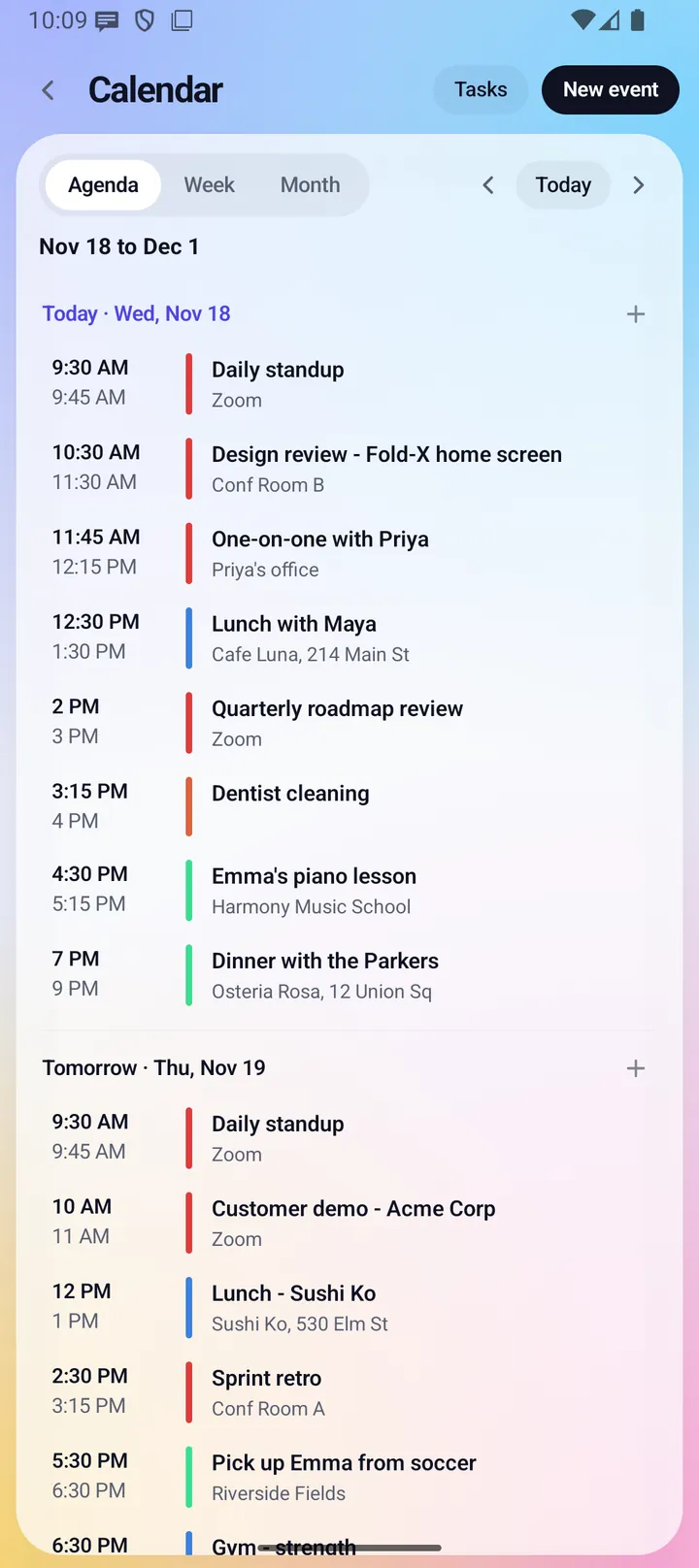
Everything Calendar and Tasks do
Where your events come from
- Calendar reads the calendar on your phone, the same one Android's own calendar apps use. Your Google, Microsoft or other accounts on the phone keep it in sync, as they already do. Fold X does not fetch your events from the Fold X server.
- To see events, allow calendar access. Until you do, a banner in the calendar pane asks "Show your own events?" with Allow and Not now. Not now hides it for now.
- If Android no longer shows its permission dialog, the banner says "Calendar is blocked for Fold X." and its button opens Android settings. Fold X checks again when you come back.
- The setup checklist's "Allow your calendar" item asks for the same permission.
- Without permission, or with no events, Calendar shows no events. It never shows sample events.
- All-day events are shown as "All day" on the right date, whatever your time zone.
Seeing an event
- The event card shows a color bar, the title, the date, the time (or "All day"), and the place, calendar name and notes when the event has them.
- Edit opens the event in the form. Delete removes it from your phone's calendar.
- Home's agenda can open an event straight in Calendar.
Creating and editing events
- Start a new event from the New event button, a day's + in Agenda, or an empty hour in Week. A new event starts as one hour long.
- The form has Title, Date, Starts, Ends, Where and Notes. Date is typed as year-month-day and times as hours and minutes, such as 09:30.
- Save checks the event first and tells you what to fix: a missing title, a date it cannot read, a time it cannot read, or an end that is not after the start. A saved event says "Saved to your calendar".
- New events go to the calendar you pick in Settings > Accounts and calendars. If you have not picked one, they go to your first visible calendar you can write to, your primary calendar first.
- Saving and deleting need calendar write access, which the same Allow button asks for.
Choosing calendars
- Settings > Accounts and calendars lists every calendar on your phone, grouped by account, with its color. Turn a calendar off to hide its events in Fold X.
- The same screen sets the calendar new events go to.
- If you are signed in to Fold X, these choices are saved to your account by calendar name, so a new phone can pick them up once you allow calendar access there.
Google Tasks sync
- Sync turns on when all three are true: you are signed in to Fold X, your plan or trial includes mail and calendar sync, and Google is connected with the Tasks permission.
- It syncs both ways. A task added, ticked or removed in Fold X changes in Google Tasks, and changes made in Google Tasks come back to Fold X.
- It syncs when Calendar opens, every 3 minutes while Calendar is showing, after each add, tick or remove (from Calendar or from Chat), and when the app comes back to the front.
- On the first sync the two lists are merged: tasks only on your phone are uploaded, the rest are downloaded, and a task with the same text on both sides is linked instead of copied.
- If a task changed on both sides, the later change wins. A task deleted on either side is deleted on both.
- If Google was connected before the Tasks permission was added, the Tasks box shows "Reconnect Google to turn on Tasks" with a Reconnect button, which opens Google's consent page.
- Settings shows Tasks as "Synced with Google Tasks" or "On this phone".
- If anything stops the sync (signed out, no plan, offline, an error), your tasks keep working on the phone and unsent changes wait for the next pass.
- If you disconnect Google, syncing stops and nothing is deleted. Your tasks stay on the phone as ordinary tasks. If you connect a different Google account, the list is merged into that account like a first sync.
Elsewhere in Fold X
- Chat handles "Add a task: ..." and "What are my tasks?" on your phone, before the AI, with no plan needed. Its card has an Open Calendar button that lands on Tasks.
- With the on-device AI, Chat can also look up your events and prepare a new event as a card. Nothing is saved until you tap Approve, and Undo deletes it again. You can turn off what Chat can read in Settings > On-device AI.
- Home shows your next event and today's agenda. Global Search can find events.
Comfort and access
- At large text sizes the view switch gets its own line, buttons move under their text, and the Week and Month grids scroll instead of squeezing.
- The side column stays above the on-screen keyboard, so the event form and the Add a task row are never covered.
Limits and what is not built yet
- Date and time are typed text fields, not pickers.
- An event you create has one date with a start and end time. You cannot create all-day, multi-day or repeating events in Fold X.
- Fold X does not set event reminders or send its own event notifications.
- Week view shows timed events between 7 AM and 10 PM only. All-day events show in Agenda and Month, not in Week.
- Tasks have a title and a done state only. Fold X does not show due dates or notes from Google Tasks, and it leaves them unchanged in Google.
- Google Tasks is the only task service Fold X syncs with.
Privacy
Your events are read from and written to your phone's own calendar. Fold X does not send them to the Fold X server; any syncing of your calendar is done by the accounts already on your phone. Tasks are saved in Fold X's settings file on the phone, which is included in Android's own device backup. When Google Tasks sync is on, your phone sends each task's text and done state to the Fold X server, which passes it to Google using the access you granted. The phone never talks to Google directly and keeps no Google token. Calendar and tasks read by Chat's tools go only to the AI model on your phone. Fold X cloud backup has a separate calendar switch that is off until you turn it on. See Data & permissions and Cloud backup and restore.